AR Art Draw: Trace & Paint
- 4.4
- Rating
- 1.00M
- Installs
- Free
- Price
 Analysis by App-foxy
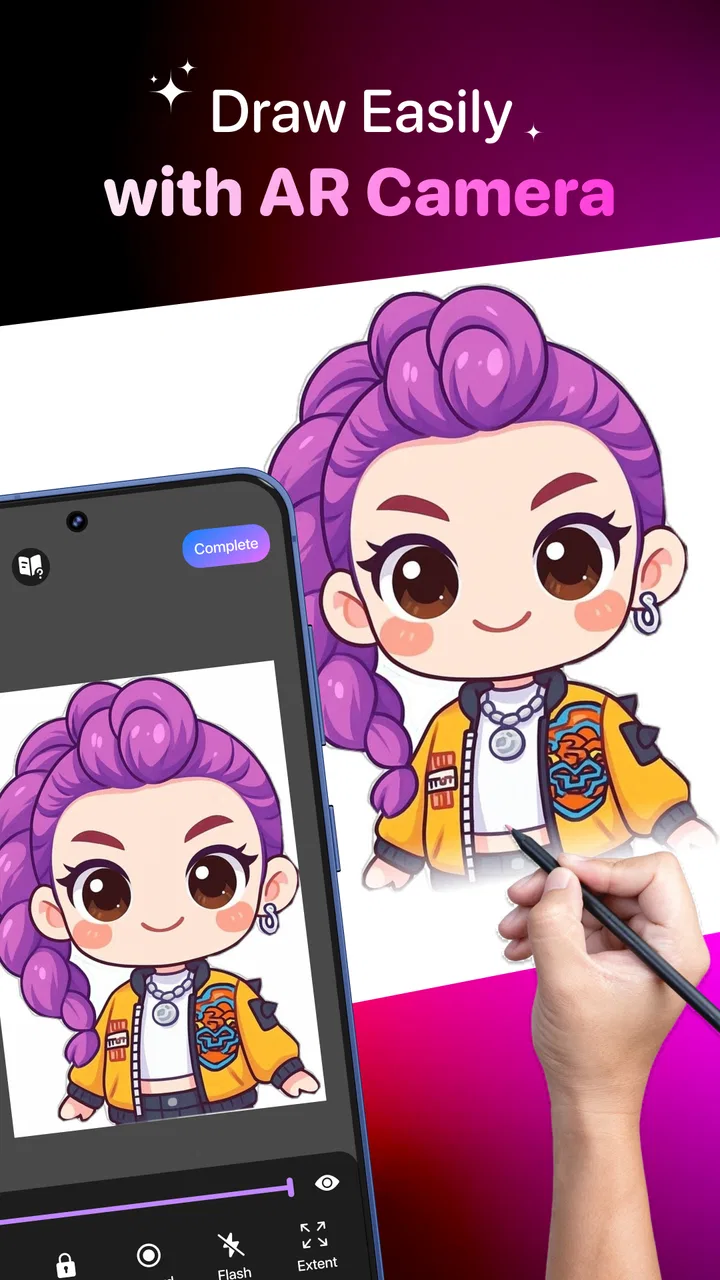
AR Art Draw: Trace & Paint caught my attention because it turns a phone into a drawing aid rather than asking me to begin with a completely blank page. As an art and design app from Zillion Fantasy, it is aimed at making sketching feel more approachable through augmented reality. In my first sessions, the appeal was immediate: choose a visual direction, position the phone, and use the projected reference as a guide while drawing on paper. That is a much friendlier starting point than staring at an empty page and wondering where the first line should go.
The important question, though, is what happens after the first week. AR effects can be entertaining once or twice, but a useful drawing tool needs to support a repeatable habit. I found that this app has genuine value for beginners, casual sketchers, parents looking for a low-pressure creative activity, and anyone who wants help with proportions. It is less convincing as a complete replacement for a structured art course or a serious digital drawing workspace. Its best role is narrower and clearer: it helps me get a physical sketch started.
What the first week feels like
The first few attempts are built around learning how to work with the phone and the paper at the same time. The phone becomes a viewing window, while the real drawing happens underneath or in front of it. That division is the central idea, and it takes a little adjustment. I had to stop thinking of the screen as a canvas and start treating it as a visual guide. Once that clicked, tracing became less intimidating.
You May Also Like

 Blood Strike: 2.5 Anniversary
Blood Strike’s Loadouts Turn Every Drop Into a Tactical Gamble
A close look at Blood Strike’s custom loadouts: how fast access to signature weapons reshapes its battle royale rhythm, rewards preparation, and narrows the gap between fights.

 Pandora - Music & Podcasts
Pandora’s Music Is Easy to Start, but Harder to Recover
Pandora’s strength is its low-effort path from a seed to a station. Its weak spot is how much confidence it asks you to place in connection, setup, and quiet recovery.

 8 Ball Pool
 Is Built on Rivalries, Rematches, and Routine
A close look at the rivalries, rematches, shared routines, and unanswered safety questions that turn a quick pool match into a persistent mobile community.

 Samsung Music
’s Quiet Strength Is Playing What You Already Own
Its reach comes less from spectacle than from dependable access to a personal library. That simplicity is both the app’s strongest retention engine and its ceiling.

 AccuWeather: Weather Radar
AccuWeather Review: A Quick, Clear Forecast for Everyday Decisions
For everyday plans, the best forecast is the one you can understand quickly. AccuWeather makes rain timing, radar, and local conditions easy to act on, with a few trade-offs.

 Hill Climb Racing
Why Hill Climb Racing Still Turns Crashes Into One More Run
A tiny car, a bumpy hill and one more upgrade: Hill Climb Racing keeps resurfacing because its simple chaos makes every near-miss feel personal.
More From Our News Desk



This approach is particularly useful when I know roughly what I want to draw but cannot judge the basic shapes. A reference projected through AR can help me notice the angle of an object, the relative size of its parts, and the position of important outlines. It does not magically teach anatomy, perspective, or shading, but it can reduce the frustration of getting the first proportions badly wrong. For a beginner, that small reduction in friction matters more than a large collection of advanced controls.
I would recommend beginning with ordinary materials rather than trying to make the first session elaborate. A firm surface, a sheet of paper that does not slide easily, and a pencil are enough to understand the workflow. If the paper moves while the phone stays fixed, the reference and the drawing stop agreeing. That is one of the first practical lessons: stability matters more than artistic ambition when using an AR drawing guide.
The app is free to start, which makes experimenting easy. It carries a 4.7 average from around 6.6 thousand ratings, and its reach has passed one million installs. Those figures suggest that the concept is connecting with a broad audience, but they do not change the hands-on reality: your enjoyment depends heavily on whether you like drawing on physical paper while looking through a phone. Someone expecting a polished tablet painting studio may feel that the experience is more limited than the store presentation implies.
One useful early habit is to keep the first drawing small. Large paper can make the phone position awkward, and a small shift in the viewing angle becomes more noticeable across a bigger image. Working at a manageable size lets me concentrate on line confidence instead of constantly correcting the setup. I also found it better to draw in light construction lines first, then strengthen the parts that look right. Tracing every visible edge heavily from the beginning can make the final picture stiff.
Who gets the most from the novelty
Children and adults who say they “cannot draw” are the obvious audience, but the app is not only for complete beginners. I can see it helping someone who enjoys crafts, journaling, card making, or decorating a room with handmade art. It gives those activities a bridge between an idea on a screen and a physical result. A parent could use it for a short weekend activity, while a hobbyist might use it to prepare a motif for painting, lettering, or collage.
It is also useful for testing interest before buying a drawing tablet or enrolling in lessons. If a person enjoys setting up a reference, following lines, and refining a sketch, that is a good sign that a more demanding art routine might suit them. If the setup already feels like work, a professional drawing application will probably not solve the problem. In that sense, the app can act as a practical trial of whether guided drawing fits someone’s personality.
The age rating is Everyone, which matches the straightforward creative purpose. I would still supervise younger children during the first sessions, not because the drawing idea is complicated, but because holding a phone in the correct position while drawing can be awkward. The app is better experienced as a shared activity at first than as something handed over without explanation.
What remains useful after the first month
The novelty fades when the glowing AR effect stops being the main attraction. That is not necessarily a weakness. Once I stopped treating the projection as magic, I could judge the app by the practical question: does it help me make something I would not have made otherwise? For occasional sketching, the answer is often yes. It lowers the starting barrier and gives a clear task for a short creative session.
The recurring value comes from changing the purpose of each session. One day, I might use it to understand a simple outline. Another time, I might trace only the broad shapes and then finish the drawing without looking at the phone. That second approach is important because it prevents the app from becoming a permanent crutch. Used this way, it supports observation while gradually leaving room for personal decisions.
A realistic everyday scenario would be a quiet evening when I have twenty minutes but no energy for a full course or a complicated digital project. I can choose a reference, prepare paper, and make a rough sketch before moving on to dinner or another task. The app works well in that gap because it does not demand a long commitment. It gives the session a beginning and an ending, which is useful for people who struggle to maintain creative routines.
For a month-to-month habit, I would create a small rotation of goals rather than repeat the same tracing exercise. The first week could focus on clean outlines. The next could use the guide only for placement, followed by freehand details. Later sessions could concentrate on adding color or adapting the reference into a greeting card or notebook illustration. This makes the tool more valuable than simply reproducing the same image repeatedly.
That workflow also reveals the app’s main educational limit. It can show me where a line belongs, but it does not replace the understanding needed to draw that subject from memory. If I want to improve substantially, I should pair guided tracing with looking at real objects, copying simple forms without assistance, and reviewing why a shape works. Use the AR view as training wheels, not as the entire bicycle.
How it compares with familiar alternatives
Compared with a normal reference image on another screen, the AR method has one clear advantage: the guide is placed directly over the drawing area. I do not need to keep shifting my eyes between a separate picture and the paper, and I can work from an outline without constantly estimating scale. That makes the first stage faster and more approachable.
A printed reference, however, is often easier for a longer session. It does not require me to keep a phone positioned correctly, and it leaves both hands and my attention available for drawing. Traditional copying also encourages me to observe rather than merely follow. For serious practice, I would alternate between the app and printed or real-world references instead of choosing only one.
Compared with a digital drawing app, AR Art Draw: Trace & Paint is more tactile. The final mark is made with a physical pencil, pen, or paint tool, so it suits people who enjoy paper and handmade results. A tablet app remains better for undoing mistakes, working in layers, changing colors quickly, and saving an editable project. If my goal is polished digital illustration, I would choose the tablet. If my goal is to get a sketch onto paper, this app has the more direct workflow.
It also differs from a formal drawing course. Lessons can explain why proportions work, offer exercises in sequence, and provide a broader path toward independent drawing. This app is more immediate but less structured. It is a useful entry point, not a complete curriculum. That distinction should guide expectations before spending time with it.
Where maintenance becomes part of the experience
The maintenance burden is not mainly about complicated menus. It is physical and procedural. I need a reasonably stable surface, enough light to see the paper, a comfortable phone position, and a reference that fits the available space. If any of those conditions are poor, the drawing session becomes a series of small corrections. The app may be simple to open, but the surrounding setup determines whether it feels effortless.
Phone placement deserves special attention. A stand or improvised support can make a major difference because holding the device by hand while drawing is tiring and introduces movement. I would not buy extra equipment just to test the app, but I would look for a stable household solution before deciding that the AR method is unreliable. The goal is to remove movement from the phone, not to build a complicated art station.
Paper choice affects the result as well. Very thin paper can be frustrating if I plan to use paint or heavier materials, while a slippery sheet can shift under my hand. A small piece of masking tape at the corners may help, provided it does not damage the surface. These are simple adjustments, but they are the kind of details that determine whether a beginner feels successful or blames their own ability.
The current version is 1.5.6 and supports devices running Android 7.0 or later. For someone using an older phone, compatibility is worth checking before planning a project. On a supported device, I would still keep the phone charged and avoid a session where a call or notification is likely to interrupt the setup. An interruption does not ruin the drawing, but it can break the alignment that made the AR guide useful.
There are optional in-app purchases priced from $4.99 to $9.99 per item. Since the app is free, I would spend time with the basic experience before paying for anything. The right question is not whether an extra item looks appealing in the moment, but whether it will support a recurring project. If I only want to try AR tracing once, paying adds little. If the app becomes part of a regular craft routine, an occasional purchase may be easier to justify, provided it offers something I will actually use repeatedly.
The kinds of fatigue that appear over time
The first source of fatigue is visual. Looking through a phone while trying to make precise marks on paper can feel less natural than drawing directly. Long sessions may become uncomfortable, especially if the phone has to remain at an unusual angle. I prefer using the app in short blocks, then putting the phone aside to inspect the drawing normally. That break also helps me notice whether the sketch works without the projected guide.
The second source is creative repetition. Tracing can produce a satisfying result quickly, but repeating the same process without changing the goal may begin to feel mechanical. The solution is not necessarily more references. It is to alter the level of dependence: trace the outline once, use only a few anchor points next time, and eventually redraw the subject from memory. That turns the app from a copying machine into part of a progression.
The third is expectation. A guide can make the position of a line clearer, but it cannot provide the pressure control, rhythm, texture, or color judgment that gives a drawing personality. If I expect the app to produce a finished illustration for me, disappointment arrives quickly. If I treat it as a way to transfer an idea onto paper, its limits feel more reasonable.
There is also a practical trade-off between speed and ownership. Following a reference can help me finish something attractive in less time, but the result may feel less personal than a drawing developed entirely from observation. I would use the app for the difficult opening stage, then deliberately change details, add my own background, or alter the expression and composition. That small act of adaptation makes the outcome feel like my work rather than a simple duplicate.
Does it earn a lasting place?
My long-term verdict is positive, but specific. AR Art Draw: Trace & Paint earns a place as a friendly bridge into physical drawing, especially for people who need help beginning. Its strongest recurring use is not endless tracing; it is short, guided practice that gradually becomes more independent. The app is most satisfying when I use it to overcome hesitation, learn placement, and then continue without it.
I would recommend it to beginners, casual artists, families, craft makers, and anyone curious about turning a digital reference into a paper sketch. The free entry point makes experimenting straightforward, and the Everyone rating keeps its intended audience broad. Zillion Fantasy has chosen a clear idea rather than trying to imitate a full professional art suite, and that focus works in its favor.
I would skip it if I mainly want digital painting, advanced layer-based editing, formal instruction, or a completely hands-free creative process. It is also not ideal for someone who dislikes preparing a physical workspace or who expects every drawing to become accurate without practice. A conventional reference image may be better for patient study, while a tablet app will be better for editable artwork.
For the best results, I would use a stable phone support, start with small sketches, keep the first lines light, and schedule occasional sessions where the guide is used only briefly. I would also judge any in-app purchase by its repeat value rather than by first-day excitement. Those habits address the main weaknesses: alignment, fatigue, and dependence.
After the novelty fades, the app remains worthwhile because it solves a real beginner problem: getting from “I want to draw this” to “I have marks on paper.” That is not the whole journey, but it is often the hardest first step. Its lasting value comes from helping me begin, then giving me a reason to practice letting go of the guide.
FAQs for AR Art Draw: Trace & Paint
01What is AR Art Draw: Trace & Paint and how does it work?
AR Art Draw: Trace & Paint is an innovative application that combines augmented reality (AR) technology with drawing tools to help users create artwork. By projecting images onto a surface through your phone's camera, you can trace and paint with ease. This app makes it ideal for beginners and experienced artists alike.
02Is AR Art Draw: Trace & Paint suitable for beginners?
Yes, AR Art Draw: Trace & Paint is designed with beginners in mind. The app provides step-by-step tutorials and a user-friendly interface, allowing users to learn and practice at their own pace. The AR feature simplifies the tracing process, making it easier for anyone to create beautiful artwork.
03What devices are compatible with AR Art Draw: Trace & Paint?
AR Art Draw: Trace & Paint is available for both Android and iOS devices. However, since it uses augmented reality, it requires devices with AR capabilities, such as ARCore for Android and ARKit for iOS. Make sure your device supports these technologies before downloading the app.
04Are there any in-app purchases in AR Art Draw: Trace & Paint?
Yes, AR Art Draw: Trace & Paint offers in-app purchases. While the app provides free basic features, additional resources such as advanced tools, premium templates, and ad-free experiences are available through purchases. These options allow users to enhance their creative experience.
05How do I get started with AR Art Draw: Trace & Paint?
Getting started with AR Art Draw: Trace & Paint is simple. After downloading the app from the Google Play Store or Apple App Store, open it and follow the on-screen instructions to set up your AR environment. Choose a template, align your camera, and start tracing and painting on your desired surface.
Pros
- Intuitive interface for easy navigation.
- Wide variety of templates available.
- Augmented reality enhances creativity.
- Real-time drawing feedback is helpful.
- Supports multiple layers for complexity.
Cons
- Occasional lag in AR mode.
- Limited free features without subscription.
- Requires a steady hand for best results.
- Some templates feel repetitive.
- High battery consumption during use.

AR Art Draw: Trace & Paint
Gallery